Set the room
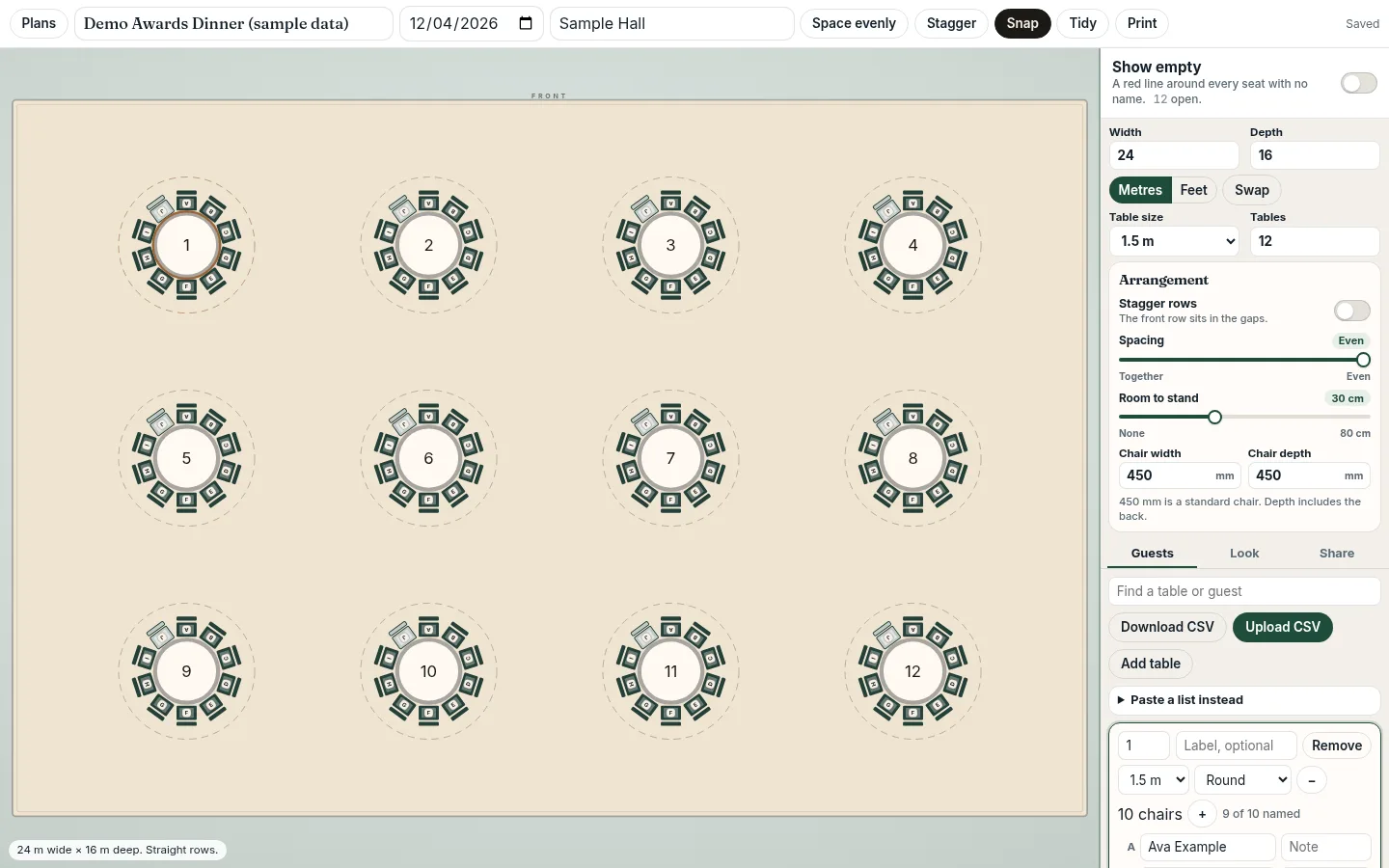
Room size, table shape and count. BES lays the tables out, in straight or staggered rows.
Replace the easel with a screen that's always up to date. It's part of the free table plan maker from Business Event Space.
Free with a Business Event Space account. No paid tier.
Everyone arrives at once and crowds one easel, and the board is already out of date. A screen that cycles between the plan and the names, plus a QR code for guest search, spreads people out and stays current.
Room size, table shape and count. BES lays the tables out, in straight or staggered rows.
Paste names and press Fill empty seats, or upload a CSV. Then drag to fine-tune.
A guest QR link and a display link. Every edit reaches both within about 15 seconds.
Display mode shows the plan on foyer or reception screens, either side by side or cycling between a plan page and a names page, with timings you set. It refreshes by itself about every 15 seconds.
Turn on sharing to get a guest link with a QR code and an optional password, plus a display link for screens in the room. Both read from the same plan. Change a seat on a laptop or tablet and the screens and guest search catch up within about 15 seconds, with nothing to re-export or reprint.
Guests open the link, type their name and the plan zooms to their seat. They don't need an account.
What it doesn't do yet: PDF or image export (use print instead), direct Excel .xlsx import (save as CSV), RSVP or meal tracking, several rooms in one plan, rules such as 'keep these two apart', or offline use. If you need those, a different tool may suit you better.
Every BES table plan is saved in your account, not in one browser. You set the room in metres or feet, add round, rectangular or square tables, and the maker lays them out in straight or staggered rows. Two sliders control the spacing between tables and the room to stand behind each chair, and you can drag any table by hand, with Snap and Tidy to keep the rows neat.
Names go onto lettered chairs: type them, paste a list and press Fill empty seats (names fill empty chairs in table-number order), or upload a CSV. When you turn on sharing you get two links, protected by an optional password: a guest link with name search and a QR code, and a display link for room screens. Both check for changes about every 15 seconds while they're open, so an edit made on a laptop or tablet reaches the screens and guests' phones without re-exporting or reprinting anything.
 ShowDocLiveFeaturedEvent production software for production managers and crew: one live place for the plan, rundown, show caller, speakers, mics, signal flow, schedule and stage timer.
 ImageFlowA free, full-featured Photoshop-class image editor that runs entirely in the browser.
 Open CAD StudioFree, open-source CAD for opening and saving DWG and DXF, 2D drafting, and 3D modeling in the browser or on Windows, Linux, and macOS.
 Countdown Timer 2.0Countdown Timer 2.0 for Windows is a fully featured timer for A/V professionals.
Open the BES display link in the TV's or a laptop's browser and go full screen.
Yes, about every 15 seconds after you edit.
Yes, between a plan page and a names page, with timings you choose.
No. Any screen with a browser works.
No. The screen needs an internet connection to refresh.
Yes.
Yes, with your branding.
Yes. The table plan maker is included with a free Business Event Space account, and there's no paid tier, export fee or guest-count upgrade.
Free with a Business Event Space account. No paid tier.
Start a free table planScreenshots show a demo plan with fictional names.