Lay out tables automatically to fit the room
Enter the room size and how many tables you need. BES works out the rows and columns and spaces the tables to fit.
Free, live table plans: lay out the room in seconds, paste your guests, and the room screens and guests' phones catch up on the night.
Free with a Business Event Space account. No paid tier.
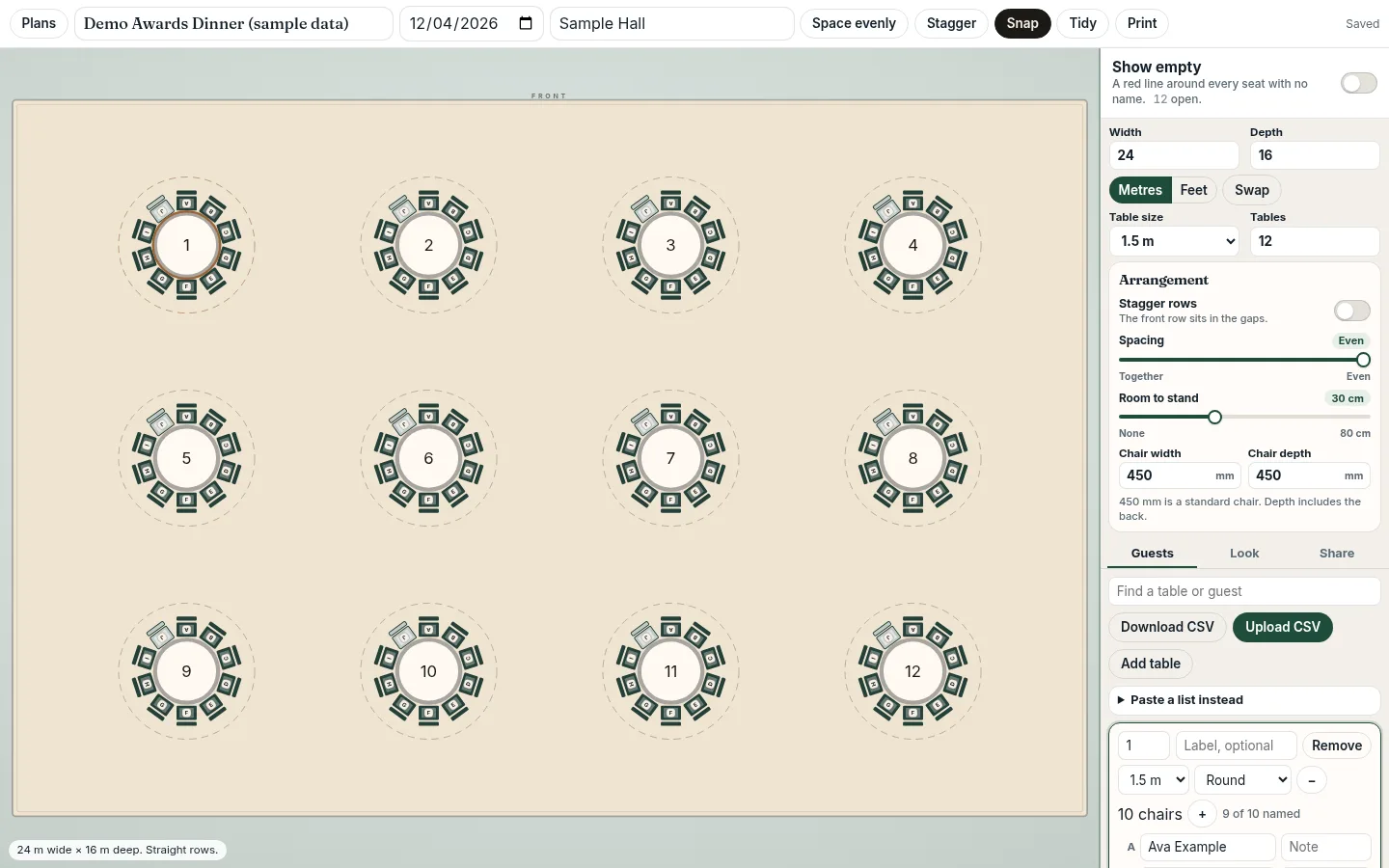
Enter the room size and how many tables you need. BES works out the rows and columns and spaces the tables to fit.
One toggle sits the front row in the gaps of the row behind, or keeps straight rows.
Slide Spacing from together to even, and set the Room to stand behind each chair.
Move any table with a mouse or a finger. Snap and Tidy line them up on an invisible grid.
Paste one name per line and press Fill empty seats. Names go into empty chairs in table-number order. CSV in and out too.
Every seat gets a letter, like 7C, and can show who is on either side. Private chair notes stay off the guest link.
Edit from a laptop or tablet. Open display screens and guest search pages pick up the change within about 15 seconds.
Set the room in metres or feet and add round, rectangular or square tables: up to 80, with up to 20 chairs each. The tables are spaced to fit, in straight or staggered rows.
Type names onto chairs, paste a list and press Fill empty seats, or upload a CSV. Seats are lettered so 'Table 7, seat C' means something.
Turn on the guest link with a QR code and an optional password, and open the display link on the room screens. Later edits reach both automatically.
Make your first table plan free.
Start your free table plan| Spreadsheet / PDF | BES table plan | |
|---|---|---|
| Cost | Free | Free |
| Visual floor plan to scale | No | Yes |
| Last-minute changes | Edit, re-export, resend, reprint | Edit once; screens and guest links catch up |
| Guest 'find my table' | Printed board | QR code and name search that zooms to the seat |
| Room screens | Static image | Display link that checks for changes about every 15 seconds |
| Notes for each seat | Extra column | Private chair notes |
Many online seating chart makers are free for a single event and export a PDF. BES is built for the event itself, not just the planning. If you only need a printed chart, a PDF tool may suit you better.
You sign off the plan on Thursday. On Friday two guests drop out, a sponsor adds three people and the chief executive's assistant swaps a table. A spreadsheet or PDF can't keep up with that. Someone re-exports, someone reprints the board, the screens in the foyer still show the old version, and guests queue at the easel looking for their name while the version in their inbox says something else.
A table plan should be one live plan, not a file you send around. In BES the plan lives in your account. The guest link and the display link both read from it, so you change a seat once and everything that shows the plan follows.
The editor runs in the browser and works with touch, so you can open it on a tablet at the side of the ballroom as well as on a laptop. Drag a table to where it really ended up, rename a chair for a late plus-one or move a no-show's partner. Changes save to your account as you go; there's nothing to export again.
Snap keeps tables on a fine invisible grid while you drag, Tidy lines everything up, and Space evenly shares the spare room out again if the layout has drifted.
The display link is a full-screen page for foyer, reception or registration screens. Show the plan and the names side by side, or let it cycle between a plan page and a names page with timings you choose. Add your logo and theme colours and a QR code that opens the guest search.
Open displays check for changes about every 15 seconds and redraw when something has moved, so a late swap reaches the screens without anyone touching the display machine. Set seat letters, neighbours and the QR code from the display's own settings.
Put the QR code on the welcome sign, on the screens or in the joining email. Guests type their name and see their table, their seat letter and, if you turn it on, who is sitting on either side. The plan zooms to their seat.
Because the page reads the live plan and checks again every 15 seconds while it's open, guests see the current seating rather than last week's version. Add a password if the guest list shouldn't be public.
Table Plan was built for awards nights, gala dinners, conference dinners, charity balls, banqueting teams and venues, and internal company events, and it works for a wedding breakfast too. It handles up to 80 tables with up to 20 chairs each, and you can keep up to 40 plans in one account, so each event or room gets its own plan.
Both the editor and the guest page print, for a back-up copy on the night. Guest lists go in and out as CSV, so your spreadsheet stays the place where you manage the list itself.
Be clear about what it doesn't do yet. There's no PDF or image export (use print), no direct Excel .xlsx import (save as CSV), no RSVP or meal tracking, no plans that span several rooms, no seating rules such as 'keep these two apart' (names fill empty seats in table order), and no offline mode: screens and guest links need a connection. If you need any of those, a different tool may suit you better.
 ShowDocLiveFeaturedEvent production software for production managers and crew: one live place for the plan, rundown, show caller, speakers, mics, signal flow, schedule and stage timer.
 ImageFlowA free, full-featured Photoshop-class image editor that runs entirely in the browser.
 Open CAD StudioFree, open-source CAD for opening and saving DWG and DXF, 2D drafting, and 3D modeling in the browser or on Windows, Linux, and macOS.
 Countdown Timer 2.0Countdown Timer 2.0 for Windows is a fully featured timer for A/V professionals.
Yes. The BES table plan maker is free with no paid tier. You need a free account so your plan can be saved and shared live.
Set the room size, add tables, paste or upload your guest names (or type them onto chairs), then share the guest link or QR code and the display link.
Yes. Edit on a laptop or tablet. Open display screens and guest links check for changes about every 15 seconds.
They scan the QR code or open the guest link, type their name and the plan zooms to their seat.
Yes. Open the display link full screen. It shows the plan and names side by side or cycles between a plan page and a names page, and refreshes automatically.
Save it as a CSV first. CSV import and export are supported; direct .xlsx import isn't. You can also paste one name per line.
Up to 80 tables with up to 20 chairs each, and up to 40 plans per account.
Yes. Guest and display links can have a password, and you can add your logo and theme colours.
Make your first table plan free.
Start your free table planScreenshots show a demo plan with fictional names.